Tuesday, March 31, 2009

HTC Touch HD - Review

Has HTC finally created a viable competitor to the iPhone, or is the Touch HD just another good-looking phone that struggles to cope with Windows Mobile?

Touch HD tilt

HTC was the first company to bring to bring a Windows-based mobile phone to market in 2002, known in the UK as the Orange SVP, and has stuck loyally with the platform for its smartphones ever since.

In that time Windows Mobile (as it is now known) has become more refined and user-friendly. It has also become a far more demanding operating system, requiring ever more powerful devices to run it, which in turn has created problems for device makers trying to balance performance with battery life.

Nonetheless, HTC has succeeded in producing several exceptional devices that have been rich in features but have struggled to compete against smartphones from RIM, Apple, Nokia and others.

This time round, HTC thinks it is on to a winner in the form of the Touch HD. It's available in the UK on a contract exclusively from Orange, but you can buy also buy it SIM free for use with other networks.

Opening the box, you soon realise this is not a cheep and cheerful smartphone. The Touch HD is solid, well, built and very tactile, despite having the most minimalist interface of any smartphone on the market. It’s like a large, sleek pebble, and far removed from the business-like industrial designs of previous HTC devices like the TyTN 2 and the Touch Pro. The HD fits nicely in your hand and is on a par with RIM’s BlackBerry Bold for size and weight.

The HD is very clean, with four touch-sensitive surface buttons for answering and ending calls, accessing the home screen and exiting applications and these have haptic feedback, which literally gives you a buzz when you press them.

An On/Off button on the top handles device power and turns the display on and off, with a volume control on the left side for earpiece and ringer volume. Other than that, all functions are controlled via the touch screen.

At 3.8in, it's the largest TFT-LCD touch screen display HTC has produced and the 480 x 800 makes good use of it. The benefits of this are that for the first time, you can realistically use 90 per cent of the phone’s features with just your fingers.

However, despite HTC’s customisation of the user interface, some parts of Windows Mobile 6.1 are still not finger-friendly. For this reason, the Touch HD still has a stylus, accessed from the base of the phone and held in its slot with a magnet.

For the most part, you’ll use the Touch HD via the TouchFLO user interface HTC has grafted over the top of Windows Mobile. Key applications and services are accessed by a scrolling ribbon along the base of the display. This gives you access to contacts, text messages, email, a web browser, share prices, the camera, music, weather reports, the main settings menu and a quick launch screen for your favourite third party applications and web links.

The default browser is not Microsoft’s Internet Explorer, though this is still installed on the phone. Instead HTC is the latest smartphone maker to adopt Opera as a default web browser. However, despite the TouchFLO screen, forget about easy iPhone style gesture controls for zooming in on web pages. Instead you have to use a scroll bar along the base of the display to zoom, or by tapping on the screen.

One nice touch is the use of the vibrate motor to provide force feedback when pressing on-screen buttons. This provides a nice tactile experience not found on most touch screen phones, with the exception of the Storm, which has a physically clickable display area.

Moving on to the camera, we see a major step up on previous Windows smartphones. The HD has a five megapixel camera with auto focus. However there is no flash. Pictures are bright with reasonable colour depth. However, even with auto focus images frequently came out with an element of blur (even when the freeze-frame on screen was pin sharp), as the HD is very unforgiving of hand shake. Meanwhile the lag between pressing the shutter button and the image being taken is a good three seconds.

Despite the large, bright display, the battery life on the HD is very good indeed. Manufacturer quoted times are up to 420 minutes in 3G mode and a slightly baffling 680 hours in standby, the latter being a full third more than the quoted GSM standby time. We tested on the Orange network with a full strength 3G signal and with moderate use (30 minutes of phone calls, one hour of browsing), managed a respectable 129 hours standby. This was helped significantly by the HD switching its display off at every possible opportunity to conserve power, a normal and welcome Windows Mobile feature.

Other nice touches include a 3.5mm audio jack for normal headphones, along with being able to access the microSD card slot without removing the battery, though you still have to remove the battery cover. Charging and syncing is done via a mini USB port, so chargers and cables will be plentiful in the accessory market.

While we really like the HD as a device, it is held back by HTC’s choice of software. Windows Mobile 6.1 is a mild update to the smartphone OS, but retains many of the characteristics of 6.0, including being very slow and juddery. Even HTC’s TouchFLO interface lacks the finesse of rival platforms.

In an ideal world, users would have a choice of what operating system they could run on their phone. The Touch HD would be a great case in point as there is little to fault about the physical device other than the average camera. How well would this phone work if it were running Symbian or Android – that’s the real question?

Specification

Size: 115mm x 62.8mm x 12mm
Weight: 147 grams
Display: 3.8inch TFT-LCD flat touch-sensitive screen with 480 x 800 WVGA resolution
Mobile phone: Quad band GSM (850/900/1800/1900 MHz), Dual band 3G (900/2100 MHz)
Data support: 2Mb/sec up and 7.2Mb/sec down (if supported by network)
Wireless: Bluetooth® 2.0 with EDR and A2DP, 802.11 b/g Wi-Fi
Camera: 5 megapixel with auto focus, VGA CMOS front-facing camera for video calls
Talk time: Up to 420 minutes (3G), 480 minutes (GSM)
Standby: Up to 680 hours (3G) 440 hours (GSM)
Video call time: Up to 140 minutes
Memory Expansion: microSD slot (SD 2.0 compatible)
On-board memory: 512MB ROM, 288MB RAM
Operating System Windows Mobile® 6.1 Professional

Sony Ericsson X1 Xperia

Is Sony Ericsson's first Windows Mobile powered smartphone a contender? We find out.

Sony Ericsson X1 Xperia


As a company Sony Ericsson hasn't been doing too well of late, to put it mildly, and that before the world economy had gone to pot. Some say the the X1 is crucial to the companies fortunes, but let's hope that's an exaggeration as while the X1 is not disaster, neither is it likely to halt Apple's you-know-what phone from flying off the shelves. However, as far as Windows Mobile powered phones go, it's got a lot going for it.

Sony Ericsson has a long association with smartphones, with the company being one of the first to attempt the concept of the can-do-it-all, multi-tasking wonder phone. That phone was the P800, and the idea of it appealed to me so much I actually bought one. However, while I persevered with it for a while it never really lived up to its promise and I soon realised that while the concept was good, the execution was flawed – the phone was simply too ahead of its time.

The P800 seems like a long time ago now, and after several successors to that seminal phone, Sony Ericsson has finally abandoned the Symbian UIQ operating system and thrown its lot in with Microsoft. Yes, the X1 Xperia is based on the Windows Mobile, in its latest 6.1 iteration an operating system that it's fair to say is tolerated rather than loved.

As with the likes of the HTC Touch Pro, the X1 is a high-end smartphone that offers a touch screen combined with a slider keyboard underneath. Naturally, as a Windows based phone a stylus is still necessary at times, and you'll find one nestling at the rear left.

By moving to Windows Mobile its latest high-end smartphone has lost something of that Sony Ericsson look and feel but there are certainly traces of the company's DNA is some of the phones features.

For a start, whoever made the decision to stick a conventional headphone jack at the top should be congratulated. No messing about with USB remote control accessories or using poor bundled headphones – you can just stick your own favoured pair right in for enjoying music or video.

Storage is simply enormous by the standards of the likes of the iPhone - 512MB of RAM, with 384MB free, with a microSD card slot available underneath the rear cover enabling you to add up to another 16MB, which is recommended to be used for storing music and video to keep performance up.

Appearance wise the X1 has an expensive look, with brushed metal front and back and a silver trim all the way round. The buttons at the bottom are a glossy black. For all its abilities and the slide out keyboard it's not too big either, measuring 110 x 53 x 16.7 mm and weighing in a reasonable 145g.


The star attraction is the screen, which offers a stupendous 800 x 480 resolution, which does wonders for web browsing and even for more mundane tasks such as viewing your Contacts - you can simply see more at the same time. The X1 bests the number of pixels on the HTC Touch Pro and matches the resolution on the HTC Touch HD.

However, it does make things look a little small. What's more many applications don't like the extra screen res – we were keen to try out the new Skyfire browser app only to find that it wouldn't run as 640 x 480 was the top res it would support.

Even more innovative is that the central select button also doubles acts as an actual mini- trackpad – so simply scrubbing your thumb up and down lets you scroll. It does have limitations as there's no actual cursor, so there's no fine control, but you can move sideways and I soon found myself using it my main means of navigation.

Above the scrollpad are two keys for making soft-menu selections and to the sides are the call activate and end buttons. There's a dedicated 'OK' button, which makes it possible to close applications, or at least remove them from the screen, without having to resort to the stylus. These buttons are all just a touch too small though, making it all a bit more fiddly than it needs to be.

Fortunately, Sony Ericsson has done something rather remarkable with the phone dialer application - it has made it usable. Press the phone button dial button and the on screen buttons are actually large enough for you to dial, something that somehow seems to have escaped the attention of designers of previous Windows Mobile based touch screen phones.

Even better, make a call and the call End button appears as a large oblong at the bottom of the screen, making it easy to end the call. It's actually easier than using the physical buttons, which is the opposite of what's normally true.

Turn the phone on its side and the camera buttons falls neatly under the right index finger, a typical Sony Ericsson touch that differentiates it from the HTC's. One can select the spot focus by simply tapping on the screen and the on-screen controls let you select video, or send your images via SMS. The camera resolution is a decent 3-megapixels but camera lag, the rather clunky operation and what turned out to be slightly washed out images mean that its not up to the standard of Sony's more consumer focused Cybershot badged camera phones.

One of the stand-out features is naturally the sliding keyboard that emerges from underneath the screen. The continues the quality feel of the product with a silver metal look and feel. The keys are quite spread out apart but there isn't quite enough travel as I would have liked. In addition the keyboard lacks the dedicated number key row that so appealed on the HTC Touch Pro. I do like the way the screen is angled up slightly on the keyboard when you slid it out, and sensibly it doesn't topple over when you place it on a table.

Windows Mobile based smartphones these days always tend to have third party interfaces slapped over the top of them, and the X1 is no different. Sony Ericsson had hyped up the X1's 'Panels' interface but in truth they're rather disappointing. Press the panel button on the front and nine mini screens appears and you can scroll between these. Select one and it becomes the main interface. Each one offers a different look and feel and offers different functionality, with the idea that you can customise your device to have quick access to the functions you like.

One offers a a clock and an RSS feed along with some a number of functions, while another is simply an animated screensaver featuring fish. Moving between them is sluggish, as a low res version appears, freezes the device for a few moment, before the high res version kicks in.

And even if you like them, the ugly Windows Mobile dialogue buttons are only a few clicks away. It actually reminds me of Vista 3D Taskbar - a flashy but destined to be little used feature.

More panels are available online and the Facebook one we tried was particularly creative, with each of your friends appearing as images inside slowly colliding bubbles, and their status displaying across the screen at the top. Overall though, the Panels have a less natural feel compared to HTC's Touch Flo 3D interface.

In terms of features there's no much the X1 can't do. With Office Mobile, Google Maps with GPS, MSN Messenger, and the supplied Opera Mobile browser, all doing the business. However, we noted a few quirks, such as the earlier mentioned Skyfire failing to run and the same occurred with Google's Java based mail application.

Battery life is a real upside for the device though, as you can be confident of getting through at least a single day of medium use - that is some web browsing, emailing, music playing and phone calls, on a single charge.

As such, there's actually a lot to like about the X1 Xperia. It's not nearly as slick as a iPhone or a G1 by any stretch of the imagination but if you want or need the sheer flexibility of Windows Mobile, or are simply locked in by the corporate compliance of the device, and you want a physical keyboard then it's really down to a choice of the X1 or the HTC Touch Pro. A lot of this will be preference, but the smaller size, lighter weight, superior battery life, and higher res screen are likely to swing it in the X1's favour for many.

Despite the nonsense that are the Panel's, the X1 does genuinely have more personality, and with the external camera button, the scroll panel control, the dialer with large buttons trick and the high resolution it's actually the easier to use. Occasional sluggishness and some glitches do spoil it somewhat but overall, if you want Windows Mobile and a keyboard, the X1 gets our nod.


Specification

Frequencies: Quad-band EDGE, GPRS, GSM, HDSPA
Connectivity: 802.11b/g Wi-Fi, Bluetooth
Dimensions (WxDxH): 110 x 53 x 16.7 mm
OS: Windows Mobile 6.1
Display: 3in 800 x 480 LCD screen
Storage: 512MB flash memory, expandable microSD storage
Camera: 3-megapixel camera, video capture
Software: Opera Mobile 9.5, Office Mobile
GPS: A-GPS
Battery life: 3G mode - 833hrs standby, 6.5hrs talk time
Weight: 146g

i-mate Ultimate 9502 review

i-mate is a relative unknown but plans to hit the market hard this year with a number of devices. We see if the Ultimate 9502 can actually live up to its name.

Relatively unknown brand i-mate began life as a Pocket PC manufacturer, re-labelling devices produced by HTC. When this deal ended in 1996, i-mate took to the world on its own, using equipment manufactured by Inventec and TechFaith.

i-mate Ultimate 9502

Although i-mate has never stood at the forefront of the Windows Mobile market, the Ultimate 9502 could signify a whole new beginning for the company, especially after announcing three new devices at Mobile World Congress in February.

The i-mate Ultimate 9502 is i-mate’s most recent launch on the market, and it certainly takes some design elements from the T-Mobile Sidekick, with a central sliding screen that reveals a full QWERTY keyboard.

The chunky device - it measures 60mm x 17.8mm x 116 mm (wdh) weighs in at a hefty 200g and feels as though it’s designed for a lot more than using as a smartphone.

The Ultimate 9502 runs Windows Mobile 6 Professional edition, which features a touchscreen element, and on this device, it’s something the imate could probably cope without. The 2.8-inch display feels too small for touchscreen functionality, so it’s handy that a stylus comes integrated into the casing because it’ll certainly get a good level of usage.

If you do want to avoid using the touchscreen for navigation, there’s an old-school jog dial on the left-hand side, which you can push in to make selections. I-mate has also included enough other shortcut keys to ensure you’ll never have to use the touchscreen.

Along the top there are messaging and Internet Explorer shortcuts, while under the screen there’s a Windows Start key, two softkeys and an OK button. Under these there’s a four-way navigation key, call start and call end button. Around the sides are a wireless connection shortcut button, another OK button plus camera, voice dialing and volume keys. Are so many keys really needed?

The keyboard, like on many touchscreen-come-hardware devices leaves a lot to be desired with microscopic keys suitable only for children. They’re also too spongy to be considered comfortable and because there are no gaps between each key, you may mistakenly press the neighbouring letter, resulting in a email of gobbledygook. You can opt to use handwriting recognition for typing or the virtual QWERTY keyboard, which again, is too small to use effectively.

Friday, March 27, 2009

Bikini Girls (Nokia Theme)

Click here to download

Bum Shums (Hot Nokia Theme)

Click here to download this hot theme

Cool Ayesha Takia (Nokia Theme)

Click here to download

Cool Katrina (Nokia Theme)

Click here to download

Agre Ka Gagra - Jai Veeru (New Hot MP4 Video)

agrekagagra1agrekagagra1agrekagagra1

Download
Download

Haafiz Khuda - 8×10 Tasveer (New MP4 Video)

haafizkhuda1haafizkhuda1

Download
Click Here To Download

Nazara Hai - 8 x 10 Tasveer (New MP4 Video)

nazaravid1nazaravid1

Download

Click here to Download

Sufi Tere Pyar Mein - Jai Veeru (New MP4 Video)

sufiterepyar1sufiterepyar1sufiterepyar1

Download

Click here to Download

Power - Aa Dekhen Zara (New Smartmovie Video)

poweradz1poweradz1

Download
Click Here To Download

Palm Pre: everything you ever wanted to know


When Palm launched its Pre last week at CES, we were both blown away and pretty overwhelmed. Besides issuing new hardware, the company also demoed a completely original operating system called webOS which incorporates some pretty heady ideas about what a mobile phone can do. Now that we've had a little time to step back, we're taking a more methodic look at the device and its software, and hoping to answer some of those nagging questions you've been asking. Read on for a look at everything we know about the phone right now.

What's the hardware like?

While we didn't see the final, final version of the hardware, Palm has gone to great lengths to bring its industrial design up to date, and they've landed a winner. The casing of the phone is made from sleek, glossy plastic, and the 3.1-inch touchscreen is flush with the face of the device, just like the iPhone or Touch Diamond. The phone has a bit of a curve to its body both in the back and around the sides, but would easily slip into a pocket. When you slide out the QWERTY keyboard, it has an almost banana-like shape to it, curving slightly to meet the contours of your hand and face. As you might expect, it feels great in the hand -- it's slightly smaller than an iPhone when closed, slightly larger when open, and roughly the same width.


On the bottom half of the phone below the screen is a black "gesture area" used for finger and thumb swipes. In the center of that space is a small metallic ball, which looks like a movable trackball, but is actually just a button. It's used to call up one of the most important parts of the UI, the "cards," but not much else. The black space is dotted with soft LED lights that glow when you swipe your finger across it -- a nice touch.

The screen itself is a sensitive capacitive touchscreen, which is as responsive (if not more) than the iPhone's display. The resolution is the same as Apple's device (480 x 320), though due to its smaller size, it has slightly higher pixel density. Colors looked bright and clear, and overall the screen was sharp and easy to read. The high gloss may cause issues in the sun, but most modern touchscreen phones seem to deal with the problem, and we expect no less from this one.


The QWERTY keyboard slides out from underneath the screen in a portrait arrangement, so users of the Centro and older Treos will feel right at home (while Tilt, Fuze, Mogul, Touch Pro, and other HTC users might have a harder time making the switch). The action of the slider didn't seem to snap into place the way we were hoping -- it had to be nudged -- but Palm assured us that this wasn't the final hardware, and that would change. Like the Centro, the keypad uses Palm's "jelly" keys, which aren't nearly as clicky as something like the Bold, but protrude more than those on the G1's keyboard and felt decent enough to tap out emails on.

Along the left side of the phone are volume buttons, and up top there's (thankfully) a 3.5mm headphone jack and ringer on / off switch. On the backside of the device is a large speaker -- not a huge difference from previous Palm phones.

A MicroUSB port lets your charge the phone or work with files for the device, though Palm is also somewhat psyched on its Touchstone, a inductive charger that lets you just place the phone atop it for power (it even snaps into place thanks to a few well-placed magnets). The Touchstone seems like it will be sold separately, but it's the first time we've seen a major phone-maker offer something like this... and it's pretty damn cool.


Around back there's a 3 megapixel camera with an LED flash which reps say can snap continuously without saving (a nice touch), and the back (as well as the battery) is removable -- a point Palm made sure to note in its presser.

While we were told at a meeting with the company that the Pre would sport a microSD slot, apparently someone got their wires seriously crossed. The device won't have expandable storage -- which is kind of a disappointment.

The phone has an AGPS chip, and looks like it will come with dedicated navigation software on-board (if Palm's official UI pics are any indication).

The phone will be released in at least two versions to start. The first, a Sprint exclusive, sports EV-DO Rev. A and 802.11b/g, as well as Bluetooth 2.1 with EDR and A2DP; the second model will get 3G GSM in place of EV-DO for sale in other parts of the world. Like the iPhone, it also touts a light sensor, proximity sensor, and accelerometer. One critical thing to note for business users and frequent flyers: the Sprint version of the phone -- likely the first to be released -- will not be a global phone, meaning it can't be used on GSM networks overseas.


What's the software like?

This is a harder question to answer, because there are so many new ideas that Palm is implementing in its webOS, the operating system it's developed based on Linux.

There are a few main ideas at play in the UI, and we'll try to cover them as extensively as we can. Given that we only had a brief time to really give it a workout (and the fact that the software isn't finished), we expect to see and hear a lot more than we know now.

The UI itself is absurdly slick -- certainly on par with the iPhone's interface and HTC's TouchFlo 3D. There are smooth zooms, transitions, and fades in and out of content, and there's no noticeable lag or stutter when moving through actions. Fonts are tastefully chosen, and the icons are akin to OS X's or Vista, with soft shadows underneath and lots of dimension.

Using the interface is mainly accomplished with swipes along the screen and by pushing the center button. A quick swipe up with your thumb slides a launcher (essentially a prettied up traditional Palm app screen) over your current state. What's notable is that you never leave the application you're in to do this. It goes up, then it goes away. Unlike the iPhone (which is really its nearest competitor), webOS provides true multitasking, allowing you to switch between active apps. You don't have to close and reopen, just shuffle through your programs. If you switch to another app, the UI scales back the program you're in down to that deck of "cards," then zooms up the new selection. By pressing the center button on the phone, you zoom out all of your cards, and can swipe through them to find what you're looking for. The content inside of the cards isn't just a snapshot like tabs in Mobile Safari -- they're live applications that can be flipped and manipulated. You can also rearrange the cards in any order by touching and holding, then sliding them around. Gestures can also be used to move back and forward in a document or webpage (swipe left or right), and there's a gesture used to bring up a quick launcher "wave" over top of whatever application you're in.


The gestures are useful, but not immediately natural. There will be a learning curve with this device, but Palm is clearly looking for what makes sense to them -- they've tried to implement components of the old OS in the new one (like having quick access to your most used apps and not bogging things down with lots of dropdown menus), and at a glance seem to have succeeded.


Besides the input and design, there are core ideas that are new to mobile OSs at play here. The first is something that Palm calls Synergy, which allows you to pull together contacts and calendars from lots of different sources, but without altering or merging that data. Synergy will grab the same contact from Facebook, Gmail, and Outlook, then combine those into a "stack" of info for that person on your phone. It looks for duped data, so you don't get doubles of phone numbers or names. It's essentially a contact aggregator, and if they can pull this off, it will end a lot of headaches for a lot of people. It looks like it will do the same for calendars, and it's also pooling IM services together, allowing for modes where you can keep a threaded conversation going with someone over SMS, AIM, GTalk, and other services. It's heady stuff, and only time (and use) will tell if this does what they say it will -- but right now it looks like a terrifically unique and innovative way to handle a myriad of data.

Notifications on the device are handled similarly to the G1, so when you get an SMS or have a calendar event, webOS scales back your app a little bit and brings up a dialog at the bottom of the screen (whereas Android adds them in a "curtain" up top). Palm insisted that this lets you have control over how and when you respond to alerts, rather than having to "dismiss" pop-ups. We like how Android implements this -- we'll see if Palm's variation is as effective.


The OS also has a rich search function which pulls up a dialog when you begin typing something on the keyboard. Like Mac OS's Spotlight, it uses a universal search to pull applications and content, but switches to a web search if you can't find what you're looking for. Right now the phone defaults to Google, Google Maps, and Wikipedia.

While we can't run through every app, we can say that the browser is Webkit based, seems snappier than other Webkit browsers we've used on mobile devices, and just may get a proper Flash plugin (Palm people seemed to hint that it was coming).

What may be most astounding at the core of the OS, however, is the way apps are to be crafted. All of the applications for the phone will be coded in standard CSS, XML, and JavaScript, meaning the learning curve for creating content and programs on the phone will be almost nonexistent for developers who know their way around coding for sites. Additionally, Palm says developers will have access to all the software layers, allow system calls and custom content to be loaded into things like notifications. Of course, the nature of the SDK (which will be available to anyone) means that things like 3D games will be hard (if not impossible) to pull off, which could be a big blow to a burgeoning developer community, considering how well games have done in the App Store. We wouldn't be surprised if Palm ultimately relented and gave developers deeper access.

There's way, way more to talk about in the UI and OS design, but we'll save that for when we can take a longer look at the device and its interface. The long and short of it is this: the Palm Pre and webOS are the first real challengers to the iPhone's innovative approach to a mobile UI and data management. Oh, and yes, it has copy and paste functions (triggered by holding down your thumb on the gesture area and selecting your text with another finger).

Cost, release date, developer support

Right now there's a ton of speculation on the price of the phone, with numbers ranging from $399 for an unlocked handset, to $149 under contract. When we spoke to both Sprint and Palm reps, they assured us that the price would be "competitive," and we don't expect anything less. The companies would have to be utterly clueless to price the Pre at anything more than the subsidized iPhone 3G -- more likely, you'll see Palm and Sprint try to drum up a stampede with prices closer to Centro numbers. That $149 sounds totally possible, but we don't expect anything more than $199 under contract to start. Still, this is speculation, so don't break any banks open till we hear the official word.

The release of the phone is slated for the "first half of 2009," which means we could see it in a week, or in June. As far as we can tell, it hasn't received regulatory approval yet, so it's likely it'll be a few months before this hits pre-order; either way, unless Palm is having major issues, it's reasonable to believe we will see the phone on shelves before Summer.

As far as developer support is concerned, Palm has effusively stated that it wants to engage the community and stoke the fires of app development. Given that webOS is based around really simple tenets of web coding, it shouldn't be hard to get in the game and start experimenting for most people, and seasoned devs will probably sink their teeth into it wholeheartedly. The question is whether or not the SDK will provide enough access beyond simple XML or JavaScript to really make software compelling. Palm has also stated plans for an App Store-like OTA hub where users can download content called the App Catalog, and will be approving apps for stability and security, but won't issue any mysterious takedowns or requests a la Apple (so they say).

Wrap up

There's still a lot we don't know about the Pre, and with a device this new, you can never truly understand what the experience will be like until you put it through the test of an average day's work. That said, Palm has made enormous strides with webOS and the Pre, both putting the brand back on the map, and offering a lust-worthy device that delivers on a big stack of promises. If they can keep the quality as high or higher than what we've already seen -- and keep themselves on track for pricing and release dates -- we think the smartphone game just got a whole lot more interesting.

Skype gets SMS, file transfer for Windows Mobile

Skype's latest mobile beta for Windows Mobile phones graduated to version 3.0 on Tuesday. Skype 3.0 beta for Windows Mobile integrates two big features from the desktop version--file transferring and SMS. Both are welcome additions that bring the mobile VoIP application much closer in line with the newly updated desktop version, Skype 4.0 for Windows.

Skype 3.0 beta on Windows MobileBuy Skype credit with Skype 3.0 beta

The SMS feature has been seamlessly added as a shortcut icon on the contact list page (it's the black circle encasing a tiny cell phone), but you can also initiate a text message by selecting "Send SMS" from the Menu options--the cost will come out of your Skype Credit. The file transfer feature is a bit more buried. To use it, select "Contact Options" from the Menu choices, and then "Send File." This will incur a data charge, so it's best to have a data plan in place before going wild with transfers.

As soon as you ship your image, song, or document out to your buddy, a new tab opens in Skype for Windows Mobile 3.0 beta that keeps track of the transfer and lets you know when your contact has accepted the download. File transfers work both ways, of course, so you'll be able to accept files sent through Skype while you're on the go--crazy photos and important business documents included. File transfer worked without a hitch over our 3G network, as did SMS. Wi-Fi will make them even faster.

After SMS and file transferring, the next biggest change is a technical one that most people shouldn't notice--the fact that you won't have to decide between downloading the version for Windows Smartphones or for Pocket PCs. A single one-size-fits-all download makes installation blissfully brainless. In addition, the beta has undergone a few understated, but useful changes to its layout, like being able to update your status, add hyperlinks to chat messages you may have missed, and the option to buy more Skype Credit.

Skype 3.0 beta for Windows Mobile 5.x and 6.x phones is available to try for free. Download it to your PC here or get the CAB file over the air. We're expecting to see the full release available in the next few months, but some of Skype's timeline may depend on the kind of user feedback they get. For our two cents, the additional features have been integrated well, and we hope to see more mobile-specific features in the future, like the capability to snap a picture from within Skype and transfer or SMS it to a pal.

HTC Magic (Sapphire) with T-Mobile USA logo hits the FCC


It's been just over a month since HTC's Magic / Sapphire first made its way through the FCC, although without any indication its destiny lied with T-Mobile. Well, it's back for Round Two, and this time the images clearly have the company's logo emblazoned at the top, just as it was at MWC when Google was showcasing its offline Gmail, and 7.2Mbps HSDPA. Yep, it's clearly heading to you-know-who's 3G network. No "G2" in sight, so for now we'll have to wait to see which of the three likely names -- or something else entirely -- T-Mo decides to run with.

Tuesday, March 24, 2009

Nokia 770 Internet Tablet


Product Category: UMPC / Internet Tablet
Manufacturer: Nokia
Where to Buy: Pricegrabber Low Price Search
Price: $134.99 to $199 USD
System Requirements: None, it is it's own system!
Specifications: Linux Operating System with built in WiFi and Bluetooth connectivity. 4.3-inch 800x480 pixel screen, 128MB Flash memory, expandable RS-MMC memory slot, USB 2.0, 3.5mm headphone adapter and built in microphone for VoIP

Pros:

  • Light-weight, all-in-one, portable computer
  • Plays music and video
  • Desktop-like Internet browsing experience (2 years before the iPhone!)
Cons:
  • Can be unstable at times
  • Cannot upgrade to newest operating system
  • Doesn't run Windows Mobile ;)
Summary:
The Nokia 770 Internet Tablet is a non-phone device designed for those who would like to check emails, surf the web and perhaps listen to some music or watch a movie without the need for a laptop. Does it fill a needed void or does it miss its intended mark? Read on to find out.

First Thoughts
Pete: When I think of Nokia I usually think of mobile phones and lots of them. They're pretty much famous for their line up of flip phones, candy bar style phones, and PDA phones. Over the last few years however Nokia has branched out a bit by releasing a really cool device that isn't a phone at all. The Nokia 770 is Nokia's Internet tablet. What's the purpose of this device you ask? Well the main purpose is to surf the Internet over a WiFi connection but this device can also play your MP3's, play videos, allows you to chat, and even has telephony voice over Internet capabilities. Is it perfect? No, not by any means but it is cool and I find at times it can be more convenient than my laptop and at less than $140.00USD, it's cheaper too.

Rocco: Less expensive and more convenient are always good things but I think one of the main important things that left me in awe with the Nokia 770 was just how practical it was over slugging around my 15in widescreen laptop everywhere I went. My back and shoulder blades are still thanking me over this purchase! Now I know some of you are pretty confused as to why a Microsoft Smartphone enthusiast site happens to be reviewing a non Smartphone device made by one of leading competitors, and the simple answer is this: Nokia has managed to get everything right where Microsoft has continued to drop the ball – at a very reasonable price point as well. Surprisingly though,they have also managed to completely drop the ball in the areas where Microsoft has excelled for years, such as email and contacts. Is this device good enough to convince you to give up your Smartphone? Not at all, and we'll cover all of that in the article, but this device is the perfect companion to go with your Windows Mobile handset.

Pete: So let's dig right in. We'll start with some pictures of the unboxing process.


Initial Setup Process
Rocco: This device could not be easier to setup. With a few clicks of stylist you can have your tablet setup in no time. While I was able to pair my Internet tablet up with my Samsung Blackjack, unfortunately the device stated very nicely that they would not play together.

One of the things I enjoy most about my Windows Mobile Standard phone was that I could just turn it on and go. While the setup process is painless and was finished quickly, I must rather prefer to just start up my device and go and then set up those other options as I need them.

Internet Browsing
Rocco: The first thing I did once I finally had the device setup, was to hop on the built in Opera Internet browser and take a few pictures of the new Smartphone Thoughts design. I must say, I was impressed with how great the pages looked. On the top of the device there are dedicated zoom in/out buttons which make reading the small text a breeze! I was also incredibly surprised to find out this device had Flash built into it as well! Now, don't get to excited. While I wasn't able to bring up or watch and Flash based video, I was able to view rudimentary Flash applications here and there.

I did have a little bit of trouble viewing some sites as this is an older version of Opera built in, but doing a little bit of searching around I discovered that you could install Mozilla's Minimo Internet browser as well, which made viewing some of those troublesome sites a lot easier! While Minimo is available for the Windows Mobile Standard handsets, I have never had an easy time getting it up and running. As much as I love my Smartphone, you just can't beat browsing the web on a 800x480 screen.

Pete: Internet browsing on the 770 is a cross between my T-Mobile Dash and a laptop. My laptop does a great job viewing web pages of course but can be cumbersome in an airplane, airport or even in bed. My Dash on the other hand is very portable and is minus the cumbersome experience, but the Dash is best used for web pages formatted for its screen size so many web pages optimized for PDA viewing. This is what makes the 770 so nice to browse with. Most pages are full web pages with a toggle button option to go to full screen mode. Pages load fairly quickly and look great. Surfing gives you a laptop experience in the palm of your hand.

Audio/Video/Pictures
Pete: The Nokia 770 Internet tablet is able to play video in the following formats: 3GP, AVI, H.263, MPEG-1, MPEG-4, RV (Real Video). While certainly not DVD quality, the 770 was able to play Star Wars and Night at the Museum fairly well. It definitely is good enough to keep you entertained on a long flight or long wait at the airport.


Rocco: All is not lost for those of you that dread using codecs such as Real Video, like myself. One of the beauties of the Nokia 770 is that underneath the hood this little bugger is running Linux and there are a ton of applications that the vast community of enthusiast have decided to port over. One of my favorites being MPlayer, which adds a slew of new video codec options to your tablet so you can enjoy your media without being restricted to the limited number of codecs that come installed by default!

Pete: It also supports the following audio file types: AAC, AMR, MP2, MP3, RA (Real Audio), WAV, WMA. I currently have 253 MP3's in addition to the movies mentioned above. It supports playlists and does a good job playing music though I feel the volume could be a bit louder when using headphones. To hold all this multimedia, I purchased a 2GB MMCmobile flash card.

Rocco: Unfortunately, I misread somewhere that this device supported microSD cards so I didn't bother to purchase one from Mobile Planet when I purchased the Nokia 770, figuring I could just use the one from my Samsung Blackjack. At first this was incredibly disappointing. Not being able to load a ton of my own music and videos onto the device, I quickly found out that not all was lost as this tablet is a fantastic streaming audio player as well. Using the built in audio application, I was able to stream over an hour and fifteen minutes of my favorite Internet radio stations without any skips of buffering while fiddling around with other programs on the device and browsing the web like a mad man! To me, this was awesome as I have not been able to stream this content on any of my Windows Mobile devices! This is one area where Microsoft could learn a thing or two!

After I got tired of streaming Internet radio, I decided to see how well the device held up streaming a few podcasts and quickly tuned into the TWiT Netcast Network to listen to a few of my favorite shows. Needless to say, I was able to listen to net@nite, this WEEK in TECH and Windows Weekly without any performance loss or stuttering on the device. Once again, this is something I wish I could do with my Windows Mobile handset but it has just never been a reality while using the carriers data network. This is why I wish more Windows Mobile handsets included WiFi, then this wouldn't be a problem. It should also be noted that the Windows Media Player interface on my Samsung Blackjack a lot easier on the eyes in the looks department.


Pete: There is no camera on the 770 but it does allow you to view stored pictures. Because it has a bright, clear 800x480 pixel display, pictures look very nice. It supports BMP, GIF, ICO, JPEG, PNG, TIFF, and SVG-tiny so chances are your digital pictures will work just fine. Zooming in and out is quite simple, and the d-pad can be pressed left or right to move to the previous or next photo. The full screen zoom hardware button lets you quickly get the big view of the photo, too.

RSS
Pete: The Nokia 770 has its own built in RSS feeder. You can add your favorite RSS sites and even have them updated automatically at time intervals you create. You can update feeds manually and individually or all feeds at once. It's a great way to get caught up on the news in a short amount of time.


Google Talk/Chat
Pete: The Nokia 770 also allows you to place and receive voice over Internet calls as well as instant messaging via Google Talk. Setting up contacts for Google Talk is very simple and is created when you set up your email contacts. Once set up, you can click on the people icon (the icon on the home screen that has people on it) and you are given the choice to send email, chat, or place a voice over Internet call. Once you choose to call or chat, you are given a list of contacts that qualify for chatting or calling and whether or not they are currently available. Settings include blocking contacts, alert settings, and privacy settings.

Rocco: I must say, I was pleasantly surprised to learn that the microphone was located on the bottom of the Nokia 770 and not on the provided headset that they give you. This little feature makes using VoIP a breeze and has made it incredibly easy to chat with friends that I know are sitting in front of the computer all day and never pick up their phones. Unfortunately the microphone is not of the highest quality and seemed a bit low, sound wise, on the receiving end. Due to this simple reason alone the VoIP solutions become more of a novelty and after a while, I stopped using the feature all together.
Email
Pete: The email application works well on the 770. You can define multiple accounts, which can either use IMAP or POP3 for mail sending and retrieval. You can tell the email application to leave email on the server and you can specify the maximum downloaded message size and whether it should download headers only. Each account can be configured for immediate sending, send on next connect, or only on request. I currently have two POP3 accounts on mine but the 770 also supports web based email accounts.

Rocco: I'm not a huge fan of the built in email application, or the others that can be downloaded, for the most part I found them slow and sluggish and this is an obvious area where I would much rather whip out the ol' Smartphone and type out a message than to wait for the email application to download the hundreds of emails in my inbox. Even though I set the program to only download the headers, this seemed to still take a little over a minute to do each time I started the application.

Installing Applications
Rocco: One of the greatest features of this device is the ability to never stop evolving. Just like Windows Mobile, you can find and use a vast number of applications. Unlike Windows Mobile though, you don't have to worry about ridiculously high prices, or any cost really, for 99% of the applications I ran across.

A quick search via Google and I stumbled upon Maemo (http://maemo.org/) which is a pretty nifty repository of applications for the Nokia 770. Some of my favorite applications, that have managed to consume a large majority of my waking hours include:

* Pidgin: My favorite Instant Messaging application for the Desktop
* Battlegweled: A very addicting Bejeweled clone
* Bash: A POSIX compliant but souped-up Bourne shell
* MPlayer: An insanely popular open source media player
* UKMP: A very impressive looking media player
* Canola: The ultimate media player for the Nokia Internet tablets

There are a ton of other applications that you can download, I just don't have the room to mention them all! Now it should be noted, that not all of these applications are what some would call “stable”. Several times now I have had to completely wipe my device to a clean state so it was stop rebooting itself due some poorly written application. To be honest, it is sometimes downright annoying to be in the middle of a Battlegwelled game and then have the device restart on you because the previous application you installed has decided to rape your device of the little stability it did have in its original state.

Conclusion
Rocco: As incredible as this device is, I'm surprised Nokia let it ship out the door with the slew of stability errors that seem to plague it. I'm also surprised that a lot of them still have not been fixed seeing as how this device has been on the market for a little over two years already. I am not sure if my device just happens to fall into that small pool of devices that are doomed to have issues the moment they leave the factory or if the problems that I have suffered happen to be effect all Nokia 770's but more often then not I find myself annoyed because the device will just restart on me if I try to visit a web page which uses javascript that the built in Opera Internet browsers do not like or every once in a while the tablet will just refuse to connect to my WiFi network or log into Google Talk until I restart the device. Are these problems enough to make me not recommend the Nokia 770? Not at all. As far as I'm concerned, I have purchased a ton of electronics under $150USD that have had far worse problems than these!

All in all, I dig this little tablet. For what it was built for, it does it surprisingly well and then some. If you have an extra bit of cash burning a hole in your wallet, make sure to head over to Mobile Planet and pick one of these up. Now if only I could get my hands on the upgraded version, the Nokia 800, for a review...

Pete: So who is this device for? Well, if you’re a gadget lover like myself, it’s definitely a fun toy that can also be useful when you need it. I can also see it being useful for business people. I have a friend who just recently bought a flip phone and renewed his two year contract. After seeing my Nokia 770 he’d like to have one as a companion to his phone. He’d be able to watch movies and listen to music on plane trips. He could also send and receive emails and surf the web at airports and hotels without the need of a data plan. I like the Nokia 770. I wish it had a bit more speed under the hood and I wouldn’t have paid the $349.00 MSRP but for under $140, I think its money well spent for all that it does.

Rocco Augusto owns and operates the small online cellular accessory store, RoccStar Accessories as well working as a full-time web developer here in the Portland, Oregon area. In his spare time Rocco enjoys spending time with his lovely fiance and beautiful daughter... as well as trying to teach their new kittens to stop climbing into and sleeping in the Christmas tree.

Pete Paxton is a health/PE teacher in Oregon. He enjoys all types of technology especially mobile technology. His favorite electronic device of any kind is his T-mobile Dash. Pete also enjoys his position as an editor for Smartphone Thoughts. Finally, He has been blessed with a beautiful wife and a fantastic nine year old son.

Feel In Touch: The Samsung Omnia Reviewed

Feel In Touch: The Samsung Omnia Reviewed


Product Category: Windows Mobile 6.1 Professional Smartphone
Manufacturer: Samsung
Where to Buy: Expansys [Affiliate]
Price: $689 USD (16 GB), $634 USD (8 GB)
Specifications: 5 MP Camera, 3.2 TFT WQVGA Touch screen (240 x 400), Bluetooth 2.0, Wi-Fi 802.11g, Quad-band GSM/GPRS/EDGE, HSDPA 7.2 Mbits, TV-out, FM Radio, Integrated GPS, microSDHC, 1440mA battery

Pros:

  • Fun to use & responsive;
  • Sleek design;
  • Innovative value-added features (e.g. flashlight, haptic feedback).

Cons:

  • Widget Bar: full of promise, low on usability;
  • No multitouch ability;
  • Price and availability.

Summary: I've posted news on the Samsung Omnia over the last few months and found it to be interesting enough to purchase. What I found when I opened the box got me excited to be using Windows Mobile again, something I doubted could ever happen. Read on for my experience re-discovering the OS through Samsung's vision of usability.

Getting To Know The Omnia

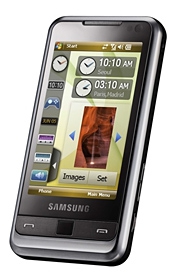
The Omnia measures 113 x 49 x 15.1 mm (4.45 x 1.93 x .59 in) and weighs in at 140g (4.94 oz). It feels nice and light to the touch without feeling cheap. The first thing that a Windows Mobile user will notice is the absence of a normal D-Pad. The Omnia sports a call send, call end, and action button on the front, with the action button holding a surprise. Not only does it work like the normal center button on a D-Pad, it IS the D-Pad. Moving your finger from side to side or up and down will scroll as if using a normal D-Pad. And if that doesn't float your boat, Samsung has also built in a mouse function that will let the little black action button control an on-screen mouse pointer. Functionality similar to a laptop's touch pad is provided, with fairly good accuracy while mousing around the screen. Turning the device on shows Samsung's unique homescreen, slightly customized below (I needed a time readout!).

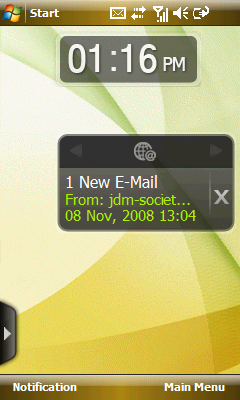
Figure 1: Samsung's widget bar, which is shown by clicking the arrow has widgets that can be dragged onto the home screen. The widgets, however, are not customizable (e.g. you cannot add new or remove existing).

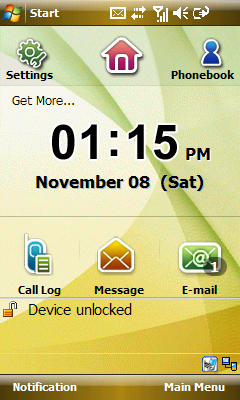
For those of you not into Samsung's new look, they also provide a more normal home screen layout sans widgets. Below is the layout I've been using.

Figure 2: Alternate home screen, pressing Settings slides the icons to the right and shows Figure 3.

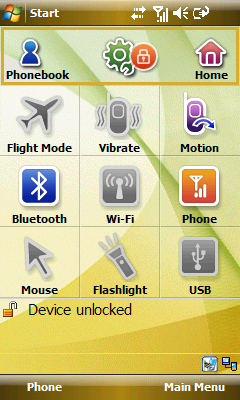
Figure 3: The settings panel, allowing you to quickly toggle vibrate, Motion (the ability to detect orientation changes and adjust screen rotation), USB mode (Activesync vs. Mass Storage), on-screen mouse, and flashlight (activating the LED flash in continuous mode).

In addition to the funky home screen that is pretty usable, the device also has its own Main Menu, in a further attempt to prevent you from ever having to deal with Windows Mobile's ugly Programs menu (well, ugly by some standards - I actually like it...)

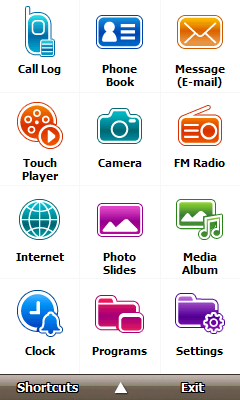
Figure 4: Samsung's Main Menu.

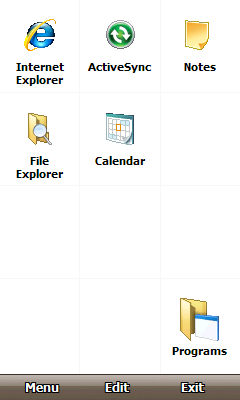
Figure 5: Modifying the Shortcuts.

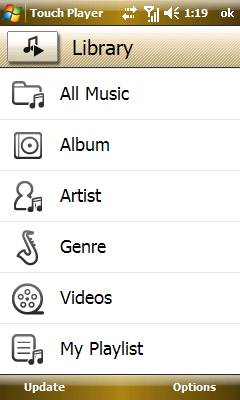
The Omnia also includes Samsung's "Touch Player", a more finger centric and friendly interface to listen to music compared to regular old Windows Media Player that we've had since the stylus-intense days of old.

Which brings up an interesting point regarding a stylus and the Omnia - namely they don't want you putting the thing anywhere near the screen. Sure, they include a stylus (a retractable one at that), but it doesn't have a silo in the device to store it. In fact, the best they can do is put a loop on the end of it so you can hook it to a hook on the device. Why? Well, they want you using your fingers see - and they will not be deterred by us old timers who long for our styli!

Figure 6: Samsung's Touch Player

Integrated Camera

The Omnia sports a 5mp camera, with LED flash as well as video recording support. The camera works very well under direct lighting, and in the dark thanks to the flash. It's medium lighting situations where you may get some blurring (as in the third example shot below). Overall the Omnia's 5mp means that I don't have to carry around my pocket camera/camcorder, however I find myself still putting it in my bag - just to be on the safe side. For each of the sample shots below, click on the image to get the full, undoctored, picture.

Figure 7: Looks warmer than it really is...

Figure 8: Everyone needs a dressed-up Jamaican Head.

Figure 9: Notice how the medium light makes this picture the blurriest of the three.

"Wow Cool" Features

The Omnia shines in the areas that Samsung has taken the time to improve over a stock Windows Mobile 6.1 core. While WinMo 6.1 is extremely powerful, it's not anything new or interesting for those of us who have been using these devices for quite some time, and it darn sure isn't anything that would make you stop and go "Wow... Cool". But here are some things I found somewhat innovative and "Wow... Cool"-ish about the Omnia.

  • The front camera that is actually useful for those without voice calling: it detects light level to increase or decrease screen brightness, and also (in conjunction with the accelerometer) can enter an "etiquette" mode. You turn the phone over on its face, and it automatically mutes all sounds.
  • The Finger Mouse. Toggle-able from the homescreen, it turns the D-Button (the black button that is sensitive to touch and can act like a D-Pad in one mode or control an on-screen mouse in another). Not useful in all situations, but in some it really shines. Hence the much appreciated toggle on the Samsung today screen for it.
  • The built-in Samsung SIP that's actually surprisingly useful for someone with big fingers to enter text into. For the ultimate dream though, a third-party app like SPB's Full-Screen Keyboard really makes one forget about a dedicated keyboard.
  • The flashlight feature that lets the light used for a "flash" actually serves some function. Hold the volume key down for 5 seconds and it turns on, letting you navigate your way through a dark room.
  • The haptic feedback (how did I get to bullet four without mentioning this already): it's very nice to get some responsiveness after a keypress, a screen rotation, even a quick button press. The weird thing? This could have been implemented years ago - we all had "vibrate" motors!
  • The value added applications such as an RSS feed reader, world clock, reader, converter and even video editor. Nevermind the FM radio built in as well as TV-OUT capabilities.
  • The smoothness of integration. While some gaps are present, Samsung excels at providing one of the best integrations of OEM components and Windows Mobile that I've seen to date.

Head to Head: Omnia vs. Touch Pro

The Omnia came to me mid-October, and after playing with it for awhile, I realized that I needed to view it in comparison to another popular device of its generation, the Touch Pro (a.k.a. the AT&T Fuze). So, without another Windows Mobile Maven around me to bum a device off of, I did the only sensible thing - I bought a Fuze at my local AT&T store (WM Devices are my only real vice, I decided to forgo excessive drinking in my undergraduate days to have cash for them..;). Anyway, it is that purchase that was the genesis of this piece of the review: the head to head comparison. I'll compare the two devices on four important qualities: Touch Responsiveness, Windows Mobile Customization, Daily Use, and Subjective Value (i.e. my own opinion).

Touch Responsiveness

Quick Response is something near and dear to most Windows Mobile Enthusiasts, and let's face it, our beloved operating system can at times have the quick response of a party-loving college freshman on Saturday morning. Especially important is the fact that these devices need to respond quickly to touch as touch is really the only thing that you're encouraged to do with them. The Omnia has a nice haptic feedback feature that I've already mentioned that lets you 'feel' when some touches are recorded, which is nice if the screen doesn't draw quickly to let you know that you're changing. But the Touch Pro will not be outdone - its screen draws in a side-by-side comparison were faster about 80% of the time for me. I know others out there have been critical of the Touch Pro and Touch Diamond's graphics performance, but at least for the devices I'm using, it seemed to draw quicker. Finally, the last test is entering text. Samsung gives a nice finger-keyboard SIP they custom designed, as does the Touch Pro. I swapped Samsung's out for a copy of SPB Keyboard 3.0 and was not disappointed. But as it comes stock, I do have to admit that the Omnia does a bit better keying in data, of course the Touch Pro has a real keyboard that can prevent finger-tap-keying in the first place. It's a touch decision, but in the end I'll have to go with the one that vibrates.

ADVANTAGE: Omnia

Windows Mobile Customization

Samsung certainly has made a bold statement with their widget bar, and the Touch Pro's TouchFlo interface doesn't much resemble the home screen we all known and love (loathe) either. If you're after information, and a quick way to find it, you'll like TouchFlo much better than the widget bar, or even Samsung's alternate interface (See Figures 2 & 3). TouchFlo, however, can be a bit sluggish until you learn the tricks (e.g. that you can hold down your finger on each icon at the bottom and rapidly scroll to the other icons). In the useful category, I'm going to have to give HTC Props, but in the "cool" category, the widget bar does have a more impressive show to put on. Which wins out in the end?

ADVANTAGE: Touch Pro

Daily Use

I recently took a trip to Chicago for a conference and brought both the Touch Pro and the Omnia along with me. Over four days I used the Touch Pro for 2 and the Omnia for the other 2. Interestingly enough, I found that while the Touch Pro could be excellent to browse quick e-mails (e.g. by using the e-mail and text tabs in TouchFlo), it had some strange quirks. The version of Google Maps I'd loaded on it took forever to get a GPS lock, even with a fresh "hint" file download. Google Maps also had the strange habit of going zombie on me. It would minimize but refuse to re-open, even if I stopped it in memory and tried to open it again. Only a soft-reset would help, causing some rather embarrassing moments while trying to navigate my way around another city (But on another note, Thank goodness for Google's new public transit routing in major US cities!). The Touch Pro, aside from its zombieness did do an admirable job and does have a beautiful VGA screen that puts Samsung's WQVGA to shame. It is my go-to device when I know I'll need to enter a lot of text. The Omnia, however, never zombied up on me, got quick GPS locks, was adequate to read my e-mail, and has remained my daily driver ever since the trip.

ADVANTAGE: Omnia

Subjective Value

Subjectively, I like both of these devices (after all, I bought both...). But the Omnia seems to have a certain sexiness that the boxiness and thickness of the Touch Pro lack. Now I know that the Touch Pro needs to be a bit more bloated since it has a keyboard, but why couldn't it include some of the "sexy" features like a 5mp camera, or better use of the accelerometer like the Omnia does out of the box? But like I mentioned before, if I plan on doing a lot of work using text input, the built-in keyboard will always win over the graphical based one. So My recommendation: if you do a lot of text, grab a Touch pro. If you don't, or you just really love finger tapping out letters, go with an Omnia.

ADVANTAGE: Draw

Conclusion

After using the Omnia for about a month, I can actually say something I've been wishing were true for awhile: this is a device that makes me excited to use Windows Mobile again! Samsung has done a good job on their first attempt to seriously tweak the OS, and may have even outdone modifying kingpin HTC in some areas. I didn't even mention the fact that the Omnia has at least 8 GB of on-board storage to play with, and there are many other nuances that make the Omnia very attractive. The Omnia is my new daily driver, and I'm eager to see what the next generation hardware/software combo from Samsung will be.

Jon Westfall is a Microsoft MVP, frequent contributor to the Thoughts Media family of sites, avid City of Hero player, and most importantly a person adrift in the sea of a doctoral dissertation, looking for an island on which to rest.

Blog Directory